How DNS Resolution Works: A Deep Dive with the dig Command
Software Developer
Introduction
You type "google.com" into your browser, hit Enter, and boom—Google's homepage appears in less than a second. Seems like magic, right? But what actually happened in that fraction of a second between typing and loading?
Behind the scenes, your computer just embarked on a journey through the hierarchical architecture of the Domain Name System, visiting multiple servers across the internet to translate "google.com" into an IP address like 142.250.190.46. This process is called DNS resolution, and understanding it is fundamental to grasping how the internet actually works.
What Is DNS and Why Does Name Resolution Exist?
Let's start with the fundamental problem DNS solves.
The Problem : Computers Speak Numbers, Humans Speak Words
Computers don't understand "google.com" or "netflix.com." They communicate using IP addresses—numerical identifiers that look like 172.217.14.206 (IPv4) or 2607:f8b0:4004:c07::64 (IPv6). These numbers tell computers exactly where to send data on the network.
But here's the thing: humans are terrible at remembering long strings of numbers. Quick—what's the IP address of your favorite website? Can't remember? Exactly. Nobody can.
Imagine if you had to memorize:
142.250.190.46to visit Google31.13.69.228to check Facebook151.101.1.140to browse Reddit104.16.132.229to watch YouTube
The internet would be practically unusable. We'd still be in the digital stone age.
The Solution : DNS as the Internet's Phonebook
DNS (Domain Name System) solves this problem by acting as the internet's phonebook. It maintains a massive, distributed database that maps human-friendly domain names to computer-friendly IP addresses.
When you type "google.com," DNS automatically looks up its IP address behind the scenes. Your computer then uses that IP address to connect to Google's servers. You never see the numbers—you just see the result.
The analogy: Think of DNS like contacts in your phone. You tap "Mom" and your phone dials the actual number (maybe 555-1234). You don't need to memorize the number—the contacts app handles the translation. DNS does the same thing for the internet.
Why It's Called "Resolution"
The process of converting a domain name to an IP address is called resolution because it resolves (answers) the question: "What is the IP address for this domain name?"
It's solving a puzzle: given a name, find the corresponding address. That's DNS resolution in a nutshell.
The Genius of DNS: A Distributed, Hierarchical System
Here's what makes DNS brilliant: it's not one giant database controlled by a single entity. Instead, it's a distributed, hierarchical system where responsibility is spread across millions of name servers worldwide.
Think of it like a library system:
Your local library doesn't have every book in the world
But it knows which regional library to ask
And that regional library knows which national library to ask
Eventually, you find the book
DNS works the same way. No single server knows every domain on the internet, but each server knows where to look next. This distribution makes DNS:
Scalable: No single point of failure
Fast: Queries can be answered locally when possible
Resilient: If one server fails, others continue working
Flexible: Domain owners control their own DNS records
Now that we understand why DNS exists, let's explore how it works by using a tool that lets us peek behind the curtain.
Meet Your New Best Friend : The dig Command
What Is dig?
dig stands for "Domain Information Groper" (yes, really). It's a command-line tool that lets you perform DNS queries and see detailed information about how those queries are resolved.
Think of dig as a diagnostic microscope for DNS. Instead of just getting the final answer (like your browser does), dig shows you:
What question you asked
Which server answered
How long it took
What the actual DNS records look like
The full path your query traveled
For developers, system administrators, and anyone troubleshooting network issues, dig is indispensable.
Installing dig
Before we dive in, make sure you have dig installed:
On Ubuntu/Debian:
sudo apt-get update
sudo apt-get install dnsutils
On macOS: It's usually pre-installed. If not:
brew install bind
On Windows: Download BIND tools from ISC or use WSL (Windows Subsystem for Linux).
Your First dig Command
Let's start simple. Open your terminal and run:
dig google.com
You'll see a LOT of output. Don't panic—we'll break it down piece by piece. But first, look at the "ANSWER SECTION":
;; ANSWER SECTION:
google.com.     149     IN      A       142.250.190.46
This line tells you: "google.com resolves to IP address 142.250.190.46." That's the basic answer to our DNS query.
When Do You Use dig?
dig is incredibly useful for:
Troubleshooting website issues: "Why can't users access our site?"
Verifying DNS changes: "Did our DNS update propagate?"
Debugging email delivery: "Are our MX records configured correctly?"
Learning how DNS works: "What's actually happening during name resolution?"
Checking DNS propagation: "Have changes reached different DNS servers?"
Investigating DNS performance: "Why are our DNS lookups so slow?"
Now let's use dig to understand the DNS hierarchy by querying it layer by layer.
Understanding the DNS Hierarchy: Root → TLD → Authoritative
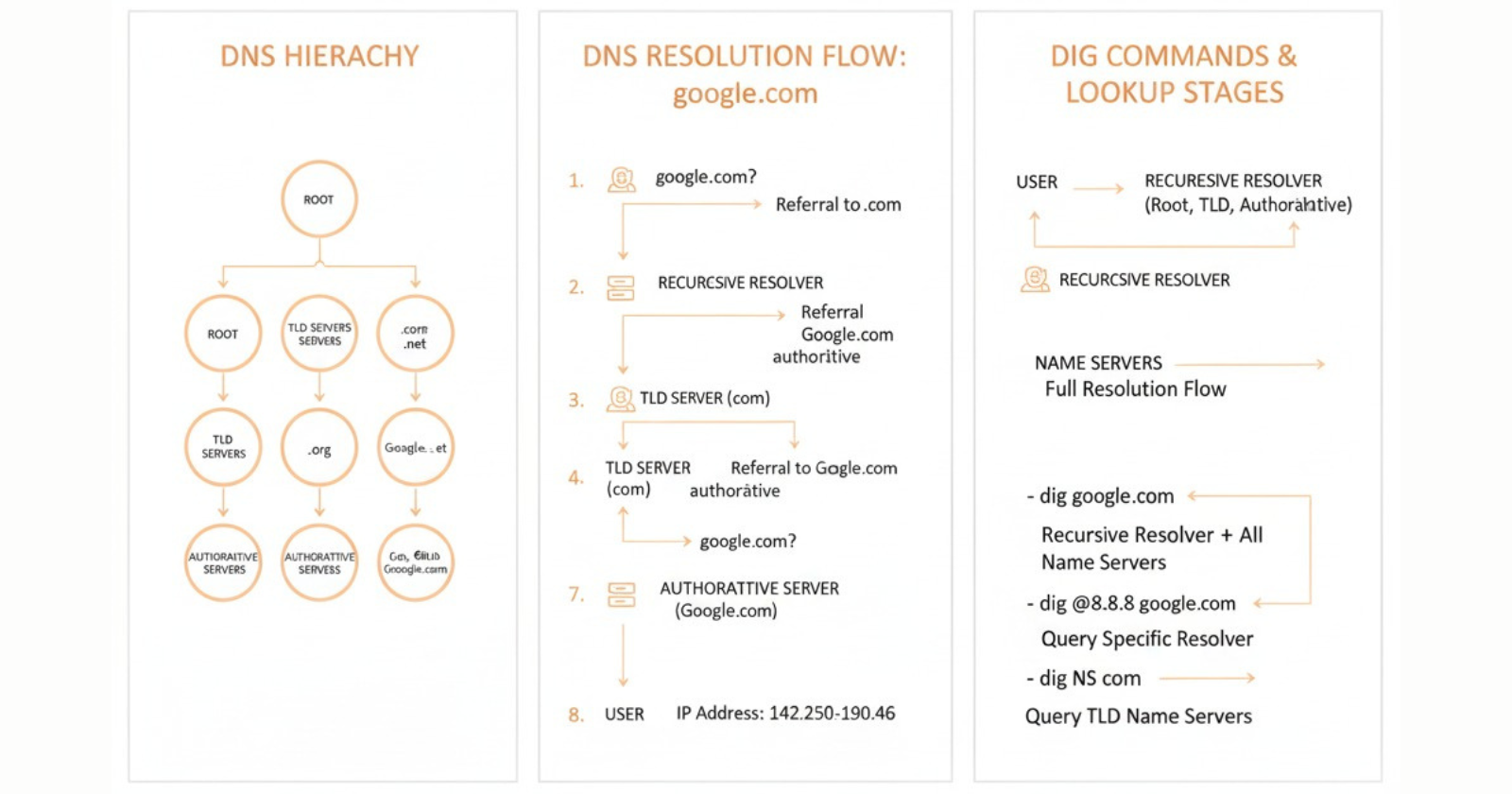
DNS is organized in a hierarchy, like a tree turned upside down. At the top (the root) sits the most general information, and as you go down the branches, you get more specific.
For a domain like www.google.com, the hierarchy looks like this:
. (root)
  ↓
.com (Top-Level Domain)
  ↓
google.com (Second-Level Domain)
  ↓
www.google.com (Subdomain/Host)
Let's explore each level using dig.
Layer 1: Understanding dig . NS and Root Name Servers
What Are Root Name Servers?
Root name servers are the starting point of all DNS resolution. They sit at the very top of the DNS hierarchy and know about all the Top-Level Domains (.com, .org, .net, .uk, .jp, etc.).
Think of them as the master directory that says:
"Want to know about .com domains? Ask these servers."
"Looking for .org domains? Ask these other servers."
"Need .uk domains? Here's who to ask."
Root servers don't know the IP address of google.com directly, but they know where to send you to find out.
The 13 Root Server Identities
There are 13 root server identities named A through M:
Important clarification: These aren't 13 physical servers. Each "root server" is actually hundreds or thousands of actual servers distributed globally using a technique called anycast. When you query "a.root-servers.net," you're routed to the geographically closest instance.
This distribution provides:
Redundancy (servers can fail without breaking DNS)
Performance (you query a nearby server)
DDoS resistance (attacks on one location don't affect others)
Querying the Root Servers
Let's ask the root servers what they know. Run this command:
dig . NS
The . represents the root of the DNS hierarchy. NS stands for "Name Server" records.
Output you'll see:
;; ANSWER SECTION:
.                       515834  IN      NS      a.root-servers.net.
.                       515834  IN      NS      b.root-servers.net.
.                       515834  IN      NS      c.root-servers.net.
.                       515834  IN      NS      d.root-servers.net.
.                       515834  IN      NS      e.root-servers.net.
.                       515834  IN      NS      f.root-servers.net.
.                       515834  IN      NS      g.root-servers.net.
.                       515834  IN      NS      h.root-servers.net.
.                       515834  IN      NS      i.root-servers.net.
.                       515834  IN      NS      j.root-servers.net.
.                       515834  IN      NS      k.root-servers.net.
.                       515834  IN      NS      l.root-servers.net.
.                       515834  IN      NS      m.root-servers.net.
This output shows all 13 root server identities. The number 515834 is the TTL (Time To Live) in seconds—how long this information can be cached before needing to be refreshed (about 6 days).
What This Means
The root servers are saying: "We are responsible for the root zone. If you want to know about any Top-Level Domain, you can ask any of us."
Now let's go one level deeper.
Layer 2: Understanding dig com NS and TLD Name Servers
What Are TLD Name Servers?
TLD (Top-Level Domain) name servers are responsible for specific domain extensions like .com, .org, .net, .edu, .gov, etc.
When you ask a root server about "google.com," it doesn't give you Google's IP address. Instead, it says: "I don't know about google.com specifically, but I know who manages all .com domains. Go ask them."
Querying the .com TLD Servers
Let's find out which servers are responsible for the .com TLD:
dig com NS
Output you'll see:
;; ANSWER SECTION:
com.                    172800  IN      NS      a.gtld-servers.net.
com.                    172800  IN      NS      b.gtld-servers.net.
com.                    172800  IN      NS      c.gtld-servers.net.
com.                    172800  IN      NS      d.gtld-servers.net.
com.                    172800  IN      NS      e.gtld-servers.net.
com.                    172800  IN      NS      f.gtld-servers.net.
com.                    172800  IN      NS      g.gtld-servers.net.
com.                    172800  IN      NS      h.gtld-servers.net.
com.                    172800  IN      NS      i.gtld-servers.net.
com.                    172800  IN      NS      j.gtld-servers.net.
com.                    172800  IN      NS      k.gtld-servers.net.
com.                    172800  IN      NS      l.gtld-servers.net.
com.                    172800  IN      NS      m.gtld-servers.net.
These are the gTLD (generic Top-Level Domain) servers that manage .com domains. Notice there are 13 of them too (a through m), just like the root servers. The 172800 TTL means this information is cached for 2 days.
The Role of TLD Servers
TLD servers maintain a registry of all domains under their extension. For .com, that's over 150 million domains!
These servers know:
That google.com exists
Which name servers are authoritative for google.com
Basic administrative information about the domain
But they still don't know the actual IP address. For that, we need to go one more level down.
Trying Other TLDs
Want to see who manages other TLDs? Try:
dig org NS
dig net NS
dig edu NS
dig uk NS
Each TLD has its own set of authoritative servers. Some are managed by Verisign (like .com and .net), others by different organizations.
Layer 3: Understanding dig google.com NS and Authoritative Name Servers
What Are Authoritative Name Servers?
Finally, we reach the bottom of the hierarchy: authoritative name servers. These are the DNS servers that actually hold the definitive DNS records for a specific domain.
If you own a domain, you decide which authoritative name servers will hold your DNS records. This is where the actual IP addresses live.
Finding Google's Authoritative Name Servers
Let's see which servers are authoritative for google.com:
dig google.com NS
Output you'll see:
;; ANSWER SECTION:
google.com.             86400   IN      NS      ns1.google.com.
google.com.             86400   IN      NS      ns2.google.com.
google.com.             86400   IN      NS      ns3.google.com.
google.com.             86400   IN      NS      ns4.google.com.
These four name servers (ns1 through ns4.google.com) are Google's authoritative name servers. They contain the actual DNS records for google.com and all its subdomains.
The TTL of 86400 seconds means this information is cached for 24 hours.
What NS Records Mean and Why They Matter
NS (Name Server) records tell DNS resolvers which servers to query for authoritative information about a domain.
They're critically important because:
They establish authority: NS records say, "These servers have the official, correct answers about this domain."
They enable delegation: By changing NS records, domain owners can move their DNS to different providers (like Cloudflare, AWS Route 53, Google Cloud DNS).
They provide redundancy: Multiple NS records mean if one server fails, others can still answer queries.
They're the reference point: Every DNS resolver follows NS records to find authoritative answers.
Querying an Authoritative Server Directly
You can query Google's authoritative servers directly:
dig @ns1.google.com google.com
The @ns1.google.com tells dig to ask that specific server instead of your default resolver.
This confirms you're getting answers straight from the source—the servers Google controls.
The Full Journey: Understanding dig google.com and Complete DNS Resolution
Now let's see what happens when you run a standard DNS query without any options:
dig google.com
This simple command triggers an entire chain of events. Let's break down the output section by section.
Full dig Output Explained
; <<>> DiG 9.16.1 <<>> google.com
;; global options: +cmd
;; Got answer:
;; ->>HEADER<<- opcode: QUERY, status: NOERROR, id: 23456
;; flags: qr rd ra; QUERY: 1, ANSWER: 1, AUTHORITY: 0, ADDITIONAL: 1

;; OPT PSEUDOSECTION:
; EDNS: version: 0, flags:; udp: 4096

;; QUESTION SECTION:
;google.com.                    IN      A

;; ANSWER SECTION:
google.com.             149     IN      A       142.250.190.46

;; Query time: 28 msec
;; SERVER: 192.168.1.1#53(192.168.1.1)
;; WHEN: Mon Jan 27 10:30:45 EST 2026
;; MSG SIZE  rcvd: 55
Let's decode each section:
1. Header Information
; <<>> DiG 9.16.1 <<>> google.com
This shows the dig version and what you queried.
2. Response Header
;; ->>HEADER<<- opcode: QUERY, status: NOERROR, id: 23456
;; flags: qr rd ra; QUERY: 1, ANSWER: 1, AUTHORITY: 0, ADDITIONAL: 1
Key flags explained:
qr: Query Response flag (this is a response, not a query)rd: Recursion Desired (we asked for recursive resolution)ra: Recursion Available (the server supports recursion)
Status NOERROR means the query succeeded.
Counts:
QUERY: 1 (we asked one question)
ANSWER: 1 (we got one answer)
AUTHORITY: 0 (no authority records included)
ADDITIONAL: 1 (one additional record provided)
3. Question Section
;; QUESTION SECTION:
;google.com.                    IN      A
This shows what we asked: "What is the A record (IPv4 address) for google.com in the Internet (IN) class?"
The dot after google.com. is important—it represents the root, making this a Fully Qualified Domain Name (FQDN).
4. Answer Section
;; ANSWER SECTION:
google.com.             149     IN      A       142.250.190.46
This is the answer we wanted!
Breaking it down:
google.com.: The domain we queried
149: TTL (Time To Live) in seconds—how long this answer can be cached
IN: Internet class
A: Record type (A = Address, IPv4)
142.250.190.46: The IP address!
5. Statistics
;; Query time: 28 msec
;; SERVER: 192.168.1.1#53(192.168.1.1)
;; WHEN: Mon Jan 27 10:30:45 EST 2026
;; MSG SIZE  rcvd: 55
Query time: How long the query took (28 milliseconds—fast!)
SERVER: Which DNS server answered (192.168.1.1 on port 53)
WHEN: Timestamp of the query
MSG SIZE: Size of the response in bytes
What Happened Behind the Scenes
When you ran dig google.com, your computer didn't directly visit all those servers we explored earlier. Instead, it asked a recursive resolver (usually provided by your ISP or a service like Google DNS at 8.8.8.8).
That recursive resolver then:
Checked its cache (maybe it recently looked up google.com)
If not cached, queried a root server
Got referred to .com TLD servers
Queried a .com TLD server
Got referred to Google's authoritative servers
Queried Google's authoritative server
Got the actual IP address
Returned the answer to you
All of this happened in 28 milliseconds!
Tracing the Full Path: dig +trace
Want to actually see each step of the DNS resolution process? Use the +trace option:
dig +trace google.com
This command performs iterative queries, meaning dig manually follows the referral chain from root to TLD to authoritative server. You'll see output like:
; <<>> DiG 9.16.1 <<>> +trace google.com
;; global options: +cmd
.                       518400  IN      NS      a.root-servers.net.
.                       518400  IN      NS      b.root-servers.net.
[... all 13 root servers ...]
;; Received 262 bytes from 192.168.1.1#53(192.168.1.1) in 4 ms

com.                    172800  IN      NS      a.gtld-servers.net.
com.                    172800  IN      NS      b.gtld-servers.net.
[... all .com TLD servers ...]
;; Received 840 bytes from 198.41.0.4#53(a.root-servers.net) in 82 ms

google.com.             86400   IN      NS      ns1.google.com.
google.com.             86400   IN      NS      ns2.google.com.
google.com.             86400   IN      NS      ns3.google.com.
google.com.             86400   IN      NS      ns4.google.com.
;; Received 840 bytes from 192.55.83.30#53(m.gtld-servers.net) in 45 ms

google.com.             300     IN      A       142.250.190.46
;; Received 55 bytes from 216.239.32.10#53(ns1.google.com) in 16 ms
Reading this output:
Step 1: Dig queries the root servers and gets a list of all 13 Step 2: Dig picks one (a.root-servers.net) and asks about .com Step 3: Root server responds with .com TLD servers Step 4: Dig queries a .com TLD server (m.gtld-servers.net) Step 5: TLD server responds with Google's authoritative servers Step 6: Dig queries Google's authoritative server (ns1.google.com) Step 7: Authoritative server provides the actual IP address
This is DNS resolution in action!
How Recursive Resolvers Use This Information
In real-world browsing, you don't manually walk through this hierarchy—recursive resolvers do it for you.
What Is a Recursive Resolver?
A recursive resolver is a DNS server that:
Accepts queries from clients (your computer, phone, etc.)
Performs all the necessary lookups on your behalf
Follows the referral chain from root → TLD → authoritative
Caches results to speed up future queries
Returns the final answer to you
Common recursive resolvers:
Your ISP's DNS (usually configured automatically)
Google Public DNS (8.8.8.8 and 8.8.4.4)
Cloudflare DNS (1.1.1.1 and 1.0.0.1)
Quad9 (9.9.9.9)
The Power of Caching
Recursive resolvers cache DNS records based on their TTL. If 1,000 people ask for google.com in an hour, the resolver only needs to do the full lookup once. The other 999 requests are answered instantly from cache.
This dramatically speeds up DNS resolution and reduces load on root, TLD, and authoritative servers.
Checking Cache Behavior
Try running:
dig google.com
Multiple times in a row. Notice the TTL value in the ANSWER SECTION decreases each time? That's because you're seeing a cached record counting down its time to expiration.
Connecting DNS to Real-World Browser Requests
Let's tie everything together with a complete example of what happens when you visit google.com in your browser.
The Complete Flow
1. You type "google.com" in your browser and hit Enter
2. Browser checks its own cache
"Did I recently visit google.com?"
If yes: use cached IP address, skip to step 8
If no: proceed to step 3
3. Operating system checks its cache
OS maintains its own DNS cache
If found: return IP to browser, skip to step 8
If not: proceed to step 4
4. Query sent to recursive resolver
Your OS sends query to configured DNS server
Usually your router, ISP, or public DNS like 8.8.8.8
5. Recursive resolver checks its cache
"Have I resolved google.com recently?"
If yes: return cached IP, skip to step 7
If no: time to do the full lookup
6. Recursive resolver performs iterative queries
Query root server: "Where can I find .com domains?"
Root responds: "Ask these TLD servers"
Query TLD server: "Where can I find google.com?"
TLD responds: "Ask Google's authoritative servers"
Query authoritative server: "What's the IP for google.com?"
Authoritative responds: "142.250.190.46"
7. Recursive resolver caches the result
Stores the IP address with its TTL
Returns answer to your OS
8. OS caches the result
Stores IP address
Returns answer to browser
9. Browser caches the result
- Stores IP for future visits
10. Browser connects to the IP address
Opens TCP connection to 142.250.190.46
Sends HTTP/HTTPS request
Receives HTML response
Renders Google's homepage
11. You see Google's search page
- Total time: usually under 100 milliseconds
Why DNS Speed Matters
Even a small delay in DNS resolution affects user experience:
100ms DNS delay = page feels snappy
500ms DNS delay = noticeable slowness
2000ms DNS delay = feels broken
This is why:
Caching is crucial at every level
Multiple name servers provide redundancy and load balancing
CDNs and anycast routing reduce geographic latency
DNS prefetching can preload likely domains
Practical dig Commands for Real-World Scenarios
Now that you understand the theory, here are practical dig commands for common tasks:
Check if DNS changes propagated
dig @8.8.8.8 yourdomain.com
dig @1.1.1.1 yourdomain.com
Compare results from different public DNS servers.
Get just the IP address
dig +short google.com
Returns only: 142.250.190.46
Check mail server records
dig google.com MX
Shows which servers handle email for the domain.
Check all record types
dig google.com ANY
Returns A, AAAA, MX, NS, and other records (though many servers now limit ANY queries).
Query a specific DNS server
dig @ns1.google.com google.com
Useful for verifying authoritative answers directly.
Reverse DNS lookup
dig -x 142.250.190.46
Finds the domain name associated with an IP address.
Check DNSSEC validation
dig google.com +dnssec
Shows DNSSEC signatures if the domain uses them.
See detailed timing information
dig google.com +stats
Includes query time and message sizes.
Troubleshooting with dig
Scenario 1: Website Not Loading
Problem: Users can't access your website.
Diagnosis:
dig yourdomain.com
Look for:
Status: NXDOMAIN? Domain doesn't exist or DNS isn't configured
Status: SERVFAIL? DNS servers are unreachable
No ANSWER section? DNS records missing
Wrong IP in answer? DNS records point to wrong server
Scenario 2: DNS Changes Not Propagating
Problem: You updated DNS records but old IPs still appear.
Diagnosis:
dig @8.8.8.8 yourdomain.com
dig @1.1.1.1 yourdomain.com
dig @208.67.222.222 yourdomain.com
Query different public DNS servers. If some show old IPs and others show new, propagation is still in progress.
Check TTL:
dig yourdomain.com
The TTL value tells you how long old records might remain cached.
Scenario 3: Email Delivery Issues
Problem: Emails to your domain aren't arriving.
Diagnosis:
dig yourdomain.com MX
Check:
Are MX records present?
Are priorities correct?
Do mail server hostnames resolve to valid IPs?
System Design and Production Considerations
Understanding DNS resolution is crucial for building production systems. Here's why it matters for backend engineers:
1. DNS-Based Load Balancing
You can return different IP addresses for the same domain:
dig google.com
Run it multiple times. Google returns different IPs for load distribution. This is called DNS round-robin.
2. Geo-Based Routing
DNS can return different IPs based on where the query originates, directing users to the nearest data center.
3. Failover and High Availability
Multiple A records provide redundancy. If one IP fails health checks, DNS providers can automatically return only healthy IPs.
4. TTL Strategy
Low TTL (like 60 seconds):
Changes propagate quickly
Easy to switch servers or failover
High TTL (like 86400 seconds / 24 hours):
Fewer DNS queries (better performance)
Less load on DNS servers
5. DNS in Microservices
In Kubernetes and microservices architectures:
Services discover each other via DNS
Service names resolve to cluster-internal IPs
DNS handles service-to-service communication
6. DNS Security Considerations
DNS spoofing: Attackers return fake IPs
DNS amplification attacks: Using DNS to DDoS targets
DNSSEC: Cryptographic signatures verify DNS authenticity
DNS over HTTPS (DoH): Encrypts DNS queries for privacy


